Coding in Comfort: My Personalized Terminal Setup
For many developers, the terminal is home. It’s where we run commands, manage files, write code, and connect to the world. Given how much time I spend there, I’ve found that investing in a personalized, comfortable, and powerful terminal setup isn’t a luxury; it’s essential for my productivity and, just as importantly, my enjoyment of the craft.
In this post, I want to walk you through my personal command-line sanctuary. It’s a combination of tools that work together to create a seamless, powerful, and aesthetically pleasing environment.
My Terminal Environment
The Foundation: iTerm2
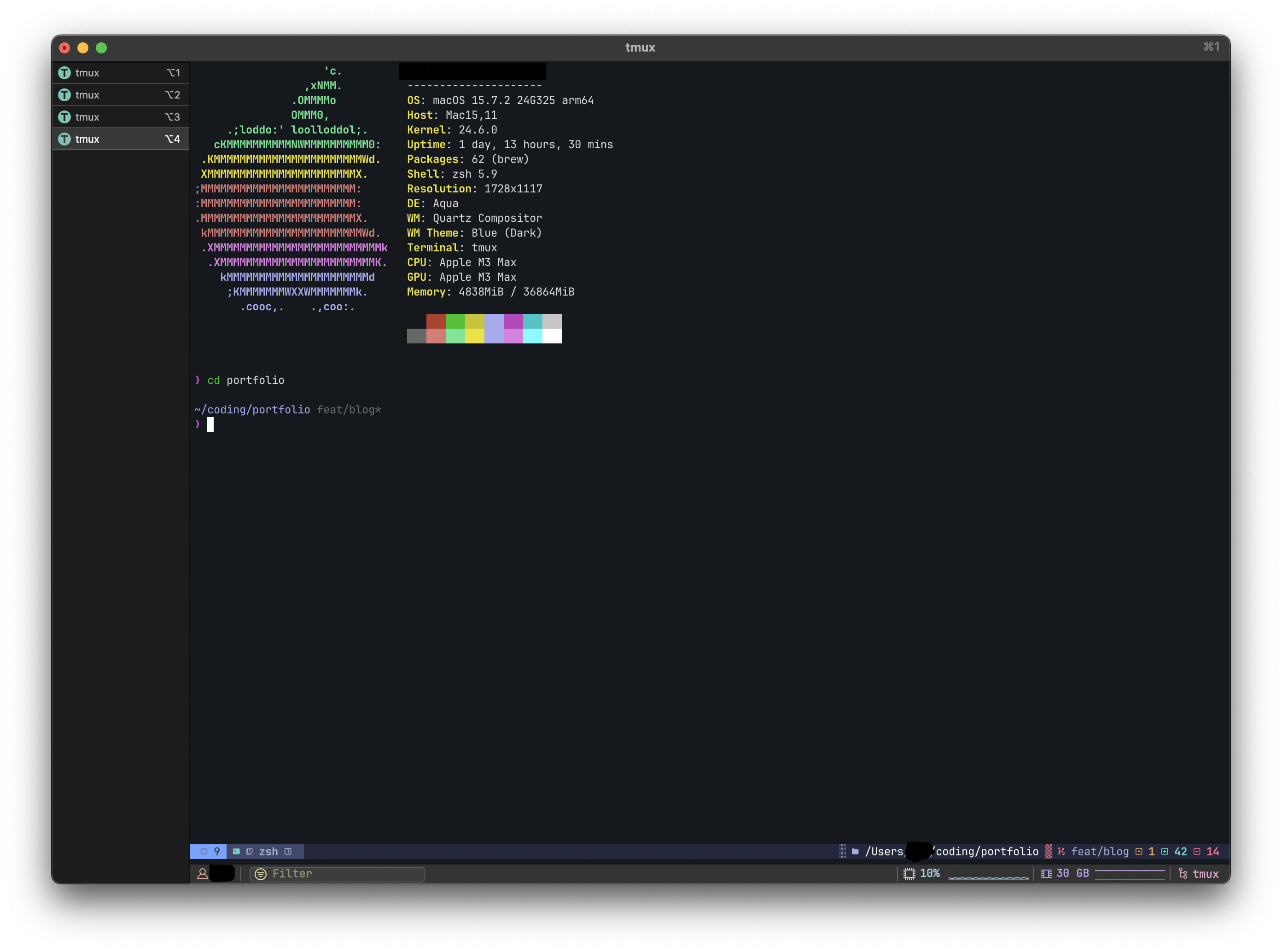
On macOS, the built-in Terminal app is fine, but iTerm2 is a massive upgrade. It’s the foundation of my setup. It offers a level of customization that the standard terminal can’t match.
My favorite features include:
- Hotkey Window: I have a global hotkey that brings a terminal window down from the top of my screen. This is perfect for quick commands like checking a git branch or running a script, without leaving my current context.
- Split Panes: The ability to slice and dice my terminal window into multiple independent panes (
Cmd+Dfor vertical,Cmd+Shift+Dfor horizontal) is indispensable for multitasking. - Copy on Highlight: A simple but brilliant feature. Any text you highlight with your cursor is automatically copied to your clipboard.
- Status Bar: I love a good status bar. iTerm2 lets you configure a highly visible bar that can show your git branch, CPU utilization, memory usage, and more. It’s great for at-a-glance information about your system.
- Search: A robust, regex-enabled search function that feels like a superpower.
Session Management: tmux
If iTerm2 is the house, tmux is the furniture. It’s a terminal multiplexer, which is a fancy way of saying it lets me manage multiple terminal sessions within a single window. But its real power lies in session persistence.
Have you ever been disconnected from a remote server mid-task? With tmux, that’s not a problem. The session lives on the server, so you can disconnect and reconnect later, and everything will be exactly as you left it.
My workflow typically involves creating a named session for each project:
# Start a new session named 'portfolio'
tmux new -s portfolio
Inside, I’ll have a window for my editor, another for running servers or tests, and maybe a third for git commands. It keeps my workspace organized and my mind clear.
The Look and Feel: Powerlevel10k
Aesthetics matter. A prompt that’s cluttered or hard to read can create friction. A prompt that’s beautiful and informative, however, is a joy to use. That’s why I use Powerlevel10k (p10k).
My p10k setup is generated by the configuration wizard, based on the p10k-pure.zsh style. I’ve configured it with nerdfont-v3 + powerline, large icons, pure, original, rprompt, and a 2-line display. Key features of my prompt include a sparse layout, transient_prompt=always, and instant_prompt=quiet for a snappy experience.
The result is a highly functional and visually appealing prompt, split into two lines:
- Left Prompt: Shows the current directory (
dir) and Git status (vcs). - Right Prompt: Displays the previous command’s execution time (
command_execution_time), active Python virtual environment (virtualenv), and user context (context).
This setup gives me instant, glanceable information about my environment, including clear indicators for Git status (like * for dirty, :⇣ for behind, :⇡ for ahead) and the duration of commands that run longer than 5 seconds. My virtual environment is subtly grey, and the prompt symbol elegantly changes color to magenta for success or red for failure.
Shell Superpowers: Zoxide and FZF
Beyond the prompt, I use a couple of other tools to make my shell experience faster and more intuitive.
Smarter Navigation with Zoxide:
zoxideis a superchargedcdcommand. It remembers which directories I visit most often, allowing me to jump to them with just a few keystrokes. For example,z portis enough to take me straight to my portfolio project directory, no matter where I am in the filesystem. It’s a huge time-saver.Fuzzy History Search with FZF: Standard shell history (
Ctrl+R) is good, but fuzzy searching is a game-changer. I usefzfto provide an interactive, filterable list of my entire command history. I can just type a few disconnected parts of the command I’m looking for, andfzffinds it instantly. It feels like my shell is reading my mind.
At Home in Neovim
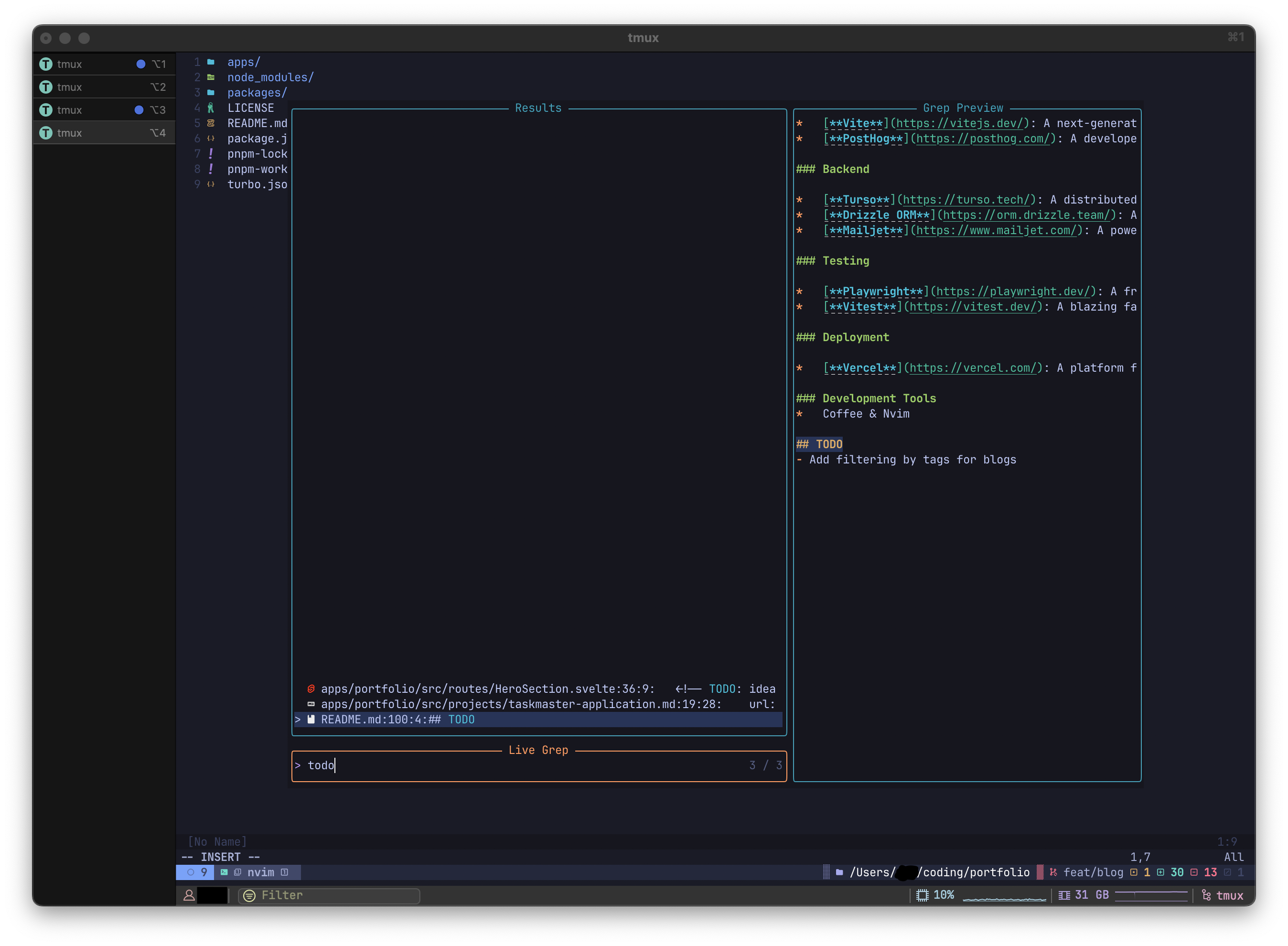
At the heart of my workflow is my code editor, Neovim. My setup is managed by lazy.nvim, a modern plugin manager that makes it easy to declare and configure plugins in Lua. The configuration is broken down into small, manageable files for each plugin, which keeps things tidy. Here are some of the key players in my setup.
Core Experience & UI
which-key.lua is a lifesaver, popping up a list of available keymaps so I never get lost. The overall look is handled by a custom colorscheme, and my status line is powered by the excellent lualine.nvim.
File Navigation & Fuzzy Finding
Instead of a traditional file tree, I use oil.nvim, which turns directories into regular buffers that you can edit and navigate like any other file. For finding anything else, telescope.nvim is the star of the show, providing an incredibly fast fuzzy search for files, buffers, text, and more.
Code Intelligence & LSP
For code intelligence, mason.lua and lspconfig.lua work together to automatically install and configure language servers. This provides essential IDE features like go-to-definition and inline diagnostics. nvim-treesitter ensures rich, accurate syntax highlighting, while nvim-cmp handles powerful autocompletion.
Git Integration
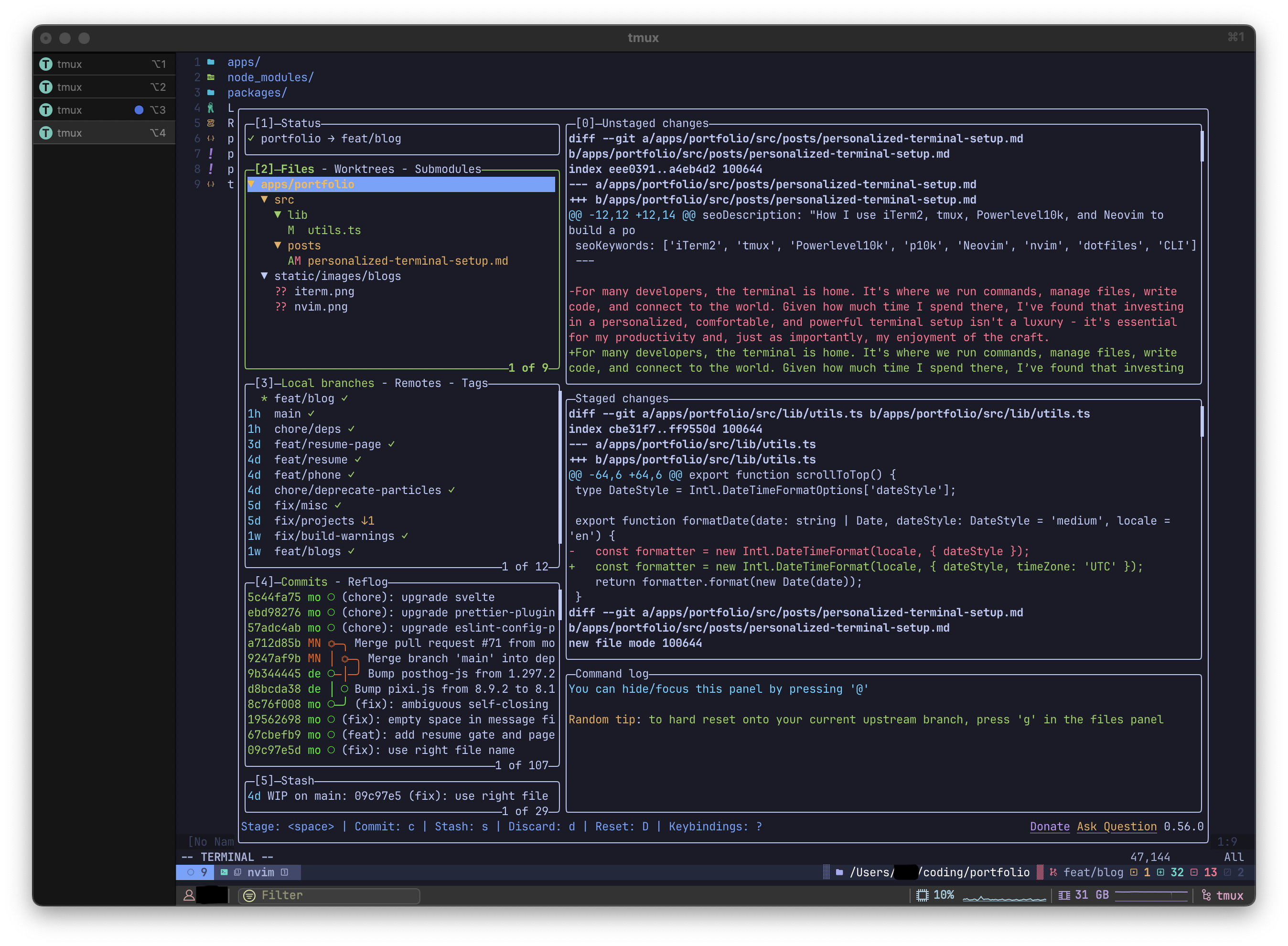
For quick git operations, I use lazygit.lua which provides a full terminal UI for staging, committing, and managing my git workflow without leaving the editor.
Final Thoughts
Further Exploration
I’m not the only one passionate about this kind of setup. I found this excellent video from the YouTube channel Dreams of Autonomy that covers many of the same concepts and tools discussed here. It’s a great visual guide to see how these elements can come together.
Conclusion
Combining iTerm2, tmux, Powerlevel10k, and Neovim creates a development environment that is more than the sum of its parts. It’s a cohesive, personal workspace that feels fast, powerful, and uniquely mine.
Investing the time to build this setup has paid for itself countless times over in saved seconds and reduced cognitive load. If you spend your days in the command line, I highly encourage you to go beyond the defaults and build a terminal that you love to use.
Disclaimer: The views and opinions expressed in this article are my own and not associated to my employer.
Mohith Nagendra